
VPC-to-VPC traffic inspection
In this article:
VPC-to-VPC traffic inspection#
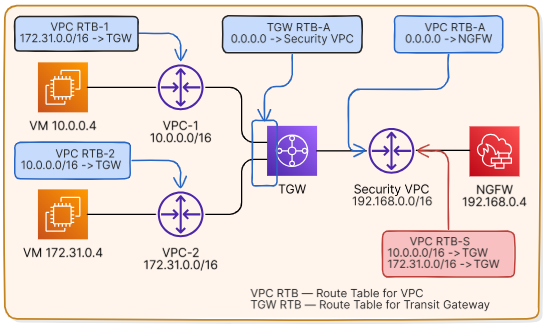
The transit gateway can be used to inspect traffic between VPCs. In this example, all traffic between two VPCs – vpc-1 (10.0.0.0/16) and vpc-2 (172.31.0.0/16) – is routed for inspection to a virtual security appliance (NGFW) in the third VPC (Security VPC) – vpc-s (192.168.0.0/16).
Subnets in vpc-1 and vpc-2 are associated with main route tables of these VPCs: vpc-rtb-1 and vpc-rtb-2, respectively. The attachment subnets in vpc-s are associated with the vpc-rtb-a route table. The subnet containing the NGFW is associated with the vpc-rtb-s route table of this VPC.
Additionally, the transit gateway attachments to vpc-1 and vpc-2 are associated with the default association route table – tgw-rtb-a, and the transit gateway attachment to vpc-s is associated with the default propagation route table – tgw-rtb-p.
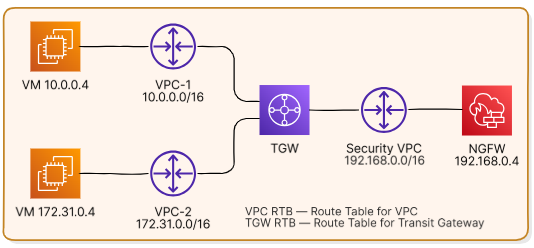
The general procedure is as follows:
set up routing between vpc-1 and vpc-2 through the transit gateway;
specify a route to vpc-s on the transit gateway attachments to vpc-1 and vpc-2 to forward traffic to vpc-s for inspection;
set the route to NGFW in the route table of the attachment subnets in vpc-s;
set up routing from vpc-s to vpc-1 and vpc-2 through the transit gateway;
set up routing on the attachment to vpc-s to route traffic to
vpc-1andvpc-2.
Traffic flow example#
This example assumes that vpc-1 hosts a running instance with the address 10.0.0.4 in the subnet 10.0.0.0/20 in the availability zone az-1; vpc-2 hosts a running instance with the address 172.31.0.4 in the subnet 172.31.0.0/20 in the availability zone az-2; and vpc-s hosts an NGFW running on the instance 192.168.0.4 in the subnet 192.168.0.0/20 in the availability zone az-3.
The NGFW inspects the traffic and forwards it to the destination through the same network interface 192.168.0.4.
Note
The traffic flow may differ to some extent, depending on the availability zones the instances are placed in.
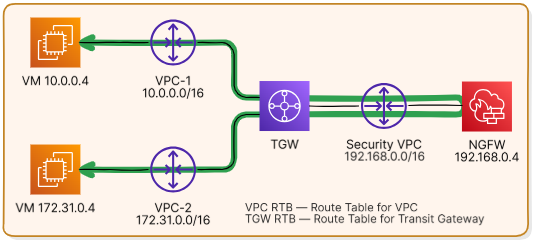
The instance 10.0.0.4 in the availability zone
az-1invpc-1sends traffic to the address 172.31.0.4.The virtual router of
vpc-1checks the destination address against the route tablevpc-rtb-1associated with the subnet and routes the packet to the virtual interface of the transit gateway attachment tovpc-1in the availability zoneaz-1.The transit gateway forwards traffic to the virtual interface of the attachment to
vpc-sin the same availability zoneaz-1according to the route tabletgw-rtb-a.Traffic enters the attachment subnet in the availability zone
az-1and is forwarded to the subnet with the NGFW in the availability zoneaz-3according tovpc-rtb-a, the route table of the attachment subnet .The instance with the NGFW receives traffic and, after inspection, sends it to the destination address 172.31.0.4.
From the subnet 192.168.0.0/20, where the traffic enters, it is routed to the transit gateway attachment to
vpc-sin the availability zoneaz-3according to thevpc-rtb-sroute table.Traffic is forwarded to the attachment to
vpc-2in the same availability zone,az-3, according totgw-rtb-p, the transit gateway route table associated with the attachment tovpc-s.The virtual router of
vpc-2forwards inbound packets from the transit gateway to the subnet 172.31.0.0/20 in the availability zoneaz-2, where the instance 172.31.0.4 is placed.The packet is delivered.
The return traffic goes a similar way from the instance 172.31.0.4 to the instance 10.0.0.4.
Create a transit gateway#
Note
The gateway will be created along with a default association route table tgw-rtb-a, while a default propagation route table tgw-rtb-p will be created separately and then associated with the transit gateway attachment to vpc-s.
Go to Interconnect Transit gateways and open the subsection of the same name.
Click Create.
Clear the checkbox Create route table and set it as default for::
route propagation.
Click Create to create the gateway.
Create attachment subnets#
In each availability zone, it is recommended to create an attachment subnet to which the transit gateway will be attached. If a subnet with instances is directly attached to a transit gateway, traffic from the gateway will flow to the instances directly and thus bypass a Network ACL. With an attachment subnet, traffic between the transit gateway and other subnets in this VPC always passes through the virtual router of the VPC and is therefore filtered by the Network ACL.
Note
Security group rules apply to the traffic on network interfaces in any case, even if the instance is located in the attachment subnet.
The attachment subnet is not recommended for placement of other resources, because it is intended only for communication with the transit gateway. Therefore, to use the least address space, the smallest possible IP subnet (/28) can be allocated as an attachment subnet.
Go to Virtual machines Networking Subnets and click Create.
In the subnet dialog window, set the following parameters:
vpc-1.(Optional) Name tag.
Subnet address
10.0.255.0/28.Availability zone to which the transit gateway should be attached.
If you need to set additional tags, go to the next step by clicking Add tags.
After setting all the required parameters, click Create subnet.
If there is only one availability zone in the region, create, in a similar way, the subnet 172.31.255.0/28 in vpc-2 and the subnet 192.168.255.0/28 in vpc-s.
If there are three availability zones in the region, create, in a similar way, the subnets 10.0.255.16/28 and 10.0.255.32/28 in the remaining availability zones in vpc-1, the subnets 172.31.255.0/28, 172.31.255.16/28 and 172.31.255.32/28 in the three availability zones in vpc-2 and the subnets 192.168.255.0/28, 192.168.255.16/28 and 192.168.255.32/28 in the three availability zones in vpc-s. The value of 255 in the third octet of the attachment subnet addresses is chosen to ensure that the VPC address space remains cohesive, contiguous, and sufficient for accommodating subnets with instances.
You can choose the number of availability zones where you are going to create subnets: one, two or three. However, for production infrastructures, we recommend creating attachment subnets in all availability zones beforehand, as you won’t be able to change them later, but have to create the transit gateway infrastructure from scratch again.
Create attachments#
Attachments must be created in each of the attached VPCs (see about connecting transit gateways).
When creating the first attachment, you can specify subnets in one or more availability zones at will. However, when creating another attachment, you must specify subnets in the same availability zones as for the first one.
Important
We recommend attaching the transit gateway to all availability zones to optimize the path for other traffic so that it is routed directly between the corresponding availability zones in different VPCs.
Note
Once created, the attachment cannot be associated with another subnet.
Go to Interconnect Transit gateways Attachments.
Click Create.
In the window that opens, set the following parameters:
The Name tag to identify the attachment, for example,
vpc-1(optional).The transit gateway you have created.
vpc-1.The attachment subnets in
vpc-1, to which the transit gateway will be attached.10.0.255.0/28;10.0.255.16/28;10.0.255.32/28.
In each of these subnets, a virtual interface will be created for attachment.
Click Create to create the attachment.
Similar attachments must be created for vpc-2 and vpc-s.
Configure routing between the vpc-1 and vpc-2 through the transit gateway#
In vpc-1 and vpc-2, set up a route to another VPC via the transit gateway. Below it is assumed that all VPC’s subnets, from which traffic must be forwarded to another VPC, are associated with the main route table of this VPC – vpc-rtb-1 and vpc-rtb-2, respectively. If any subnet has another route table associated, then to make it forward traffic to another VPC, a route via the transit gateway must also be added to that table.

Go to Virtual machines Networking Route tables.
In the resource table, select the main route table
vpc-rtb-1forvpc-1and click on the route table ID to go to its page.Open the Routes tab and click Add.
In the dialog window:
In the Network field, specify the target network in
vpc-2. In this example, this is network172.31.0.0/16, which corresponds tovpc-2.In the Gateway Type field, select Transit Gateway.
In the Gateway field, select the created transit gateway.
Click Add to create the route.
For
vpc-2, repeat steps 3-5.
In tgw-rtb-a set up a route to vpc-s#
The tgw-rtb-a route table, created together with the transit gateway, was selected as the default association route table. It is automatically associated with all transit gateway attachments to VPCs (including the transit gateway attachment to vpc-s, but it will be subsequently associated with another route table – tgw-rtb-p). For the transit gateway to forward traffic between vpc-1 and vpc-2 for inspection to vpc-s, set up routes to vpc-s.
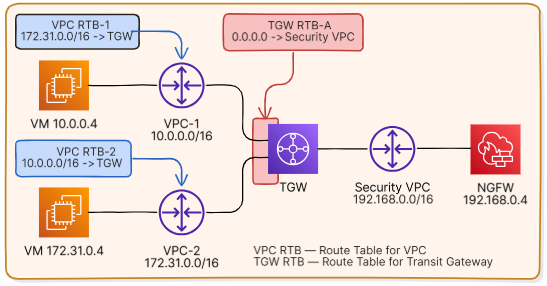
Go to Interconnect Transit gateways Route tables.
In the resource table, select the transit gateway route table
tgw-rtb-aand click on the route table ID to go to its page.In the Routes tab click Add.
In the dialog window:
In the Network field, specify
0.0.0.0/0as the target network so that all outbound traffic is forwarded tovpc-s.In the Attachment field, select the attachment through which
vpc-sis attached to the transit gateway.
Click Create.
In vpc-rtb-a set up a route to the NGFW#
All traffic coming from vpc-1 and vpc-2 to the attachment subnets in the vpc-s must be forwarded to the NGFW network interface 192.168.0.4 for further inspection. To do this, create a separate route table vpc-rtb-a, associate it with the attachment subnets and set up a route to the NGFW in this table.
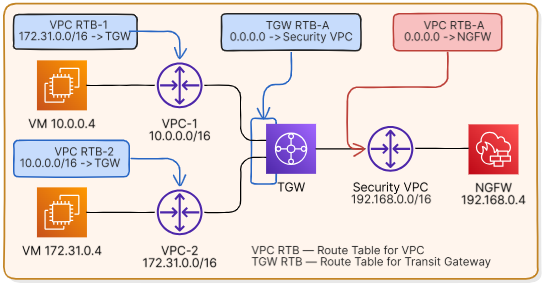
Go to Virtual machines Networking Route tables.
Associate the created route table with attachment subnets in vpc-s.
In the resource table, select the created route table and click on the table ID to go to its page.
Open the Routes tab and click Add.
In the dialog window:
In the Network field, specify
0.0.0.0/0.In the Gateway type field, select
Instance.In the Gateway field, select from the drop-down list the instance on which the NGFW is running.
Click Add to create the route.
Set up return routes in vpc-rtb-s#
To route return traffic, create a separate route table vpc-rtb-s, associate it with the subnet where the NGFW is located, and set up routes to vpc-1 and vpc-2.
Go to Virtual machines Networking Route tables.
Associate the created route table with the subnet, where NGFW is placed.
In the resource table, select the created route table and click on the table ID to go to its page.
Open the Routes tab and click Add.
In the dialog window:
In the Network field, specify the target network in
vpc-1. In this example, this is the network10.0.0.0/16, which corresponds tovpc-1.In the Gateway Type field, select Transit Gateway.
In the Gateway field, select the transit gateway you are using.
Click Add to create the route.
For
vpc-2, repeat steps 3-5.
Set routing for the attachment to vpc-s#
To forward inspected traffic to target VPCs, configure the transit gateway route table tgw-rtb-p for the vpc-s attachment.

Go to Interconnect Transit gateways Route tables.
In the resource table, find the created route table and click on the route table ID to go to its page.
In the Route propagation tab, click Enable route propagation. In the window that opens, select the transit gateway attachments to
vpc-1andvpc-2. Click Enable.Go to Interconnect Transit Gateways Transit Gateways and set the table as default for route propagation. Routes to all subsequently attached VPCs will be automatically added to this table.
Go to Interconnect Transit gateways Route tables and associate this route table with transit gateway attachment to vpc-s.
The created default propagation route table tgw-rtb-p will be associated with the attachment to vpc-s instead of tgw-rtb-a, a default association route table. Routes through the transit gateway to vpc-1 and vpc-2, as well as to all subsequently attached VPCs, will be installed in this table automatically.